
CONNECTING FACEBOOK
How to connect your Facebook Page to School Window
Please follow the steps below to allow us to connect your Facebook Page to your app.
If your Instagram account is connected to your Facebook Page, it can be linked at the same time — no extra setup required.
Note: This integration does not grant School Window access to any administrative data or controls.
It only allows us to surface posts published from your school's Pages — nothing more.
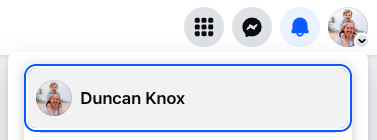
Make sure you're logged into Facebook and your personal profile is displayed as the icon in the top right corner.
(Facebook requires this connection to happen via your personal account.)
You should have received an invitation from duncan@schoolwindow.app.
If you haven’t seen it yet, check your junk or spam folder.
Once accepted, log in here:
🌍 Global:
https://admin.schoolwindow.app/users/sign_in
🇦🇺 Australia & 🇳🇿 New Zealand:
https://au.schoolwindow.app/users/sign_in
📩 If you can't find your invitation or access the dashboard, please let your School Window account manager know — we’ll get you sorted quickly.
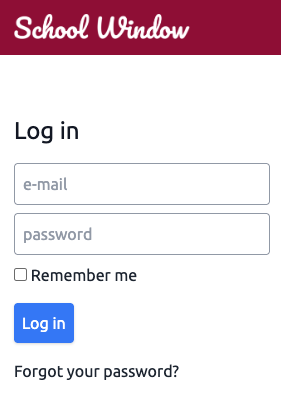

On your dashboard, click the blue button:
“Connect to Facebook to add Pages, Groups, Profiles or Instagram Profiles.”
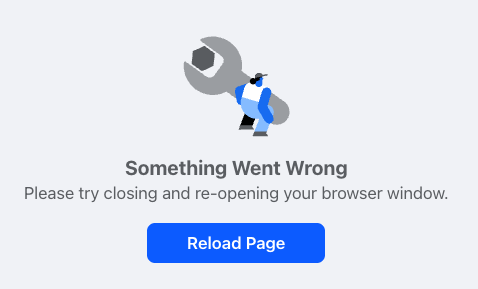
Facebook may show a “Something went wrong” message.
Don’t worry — just click “Reload Page” to continue.
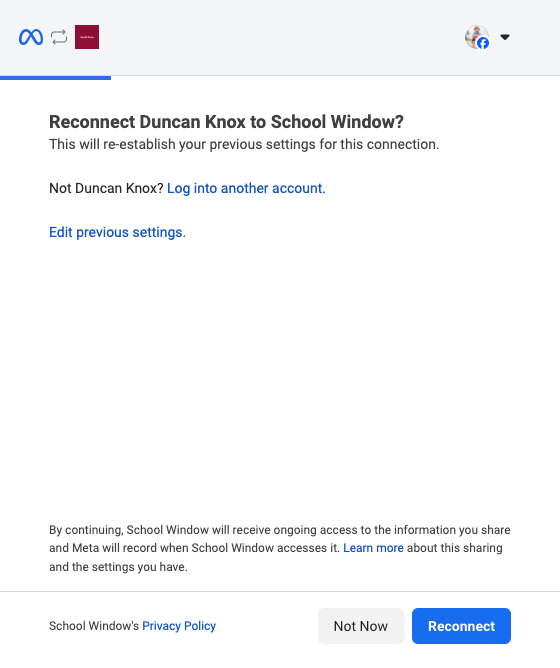
Facebook will guide you through one or two permission screens.
Click the blue buttons at each stage to approve access.
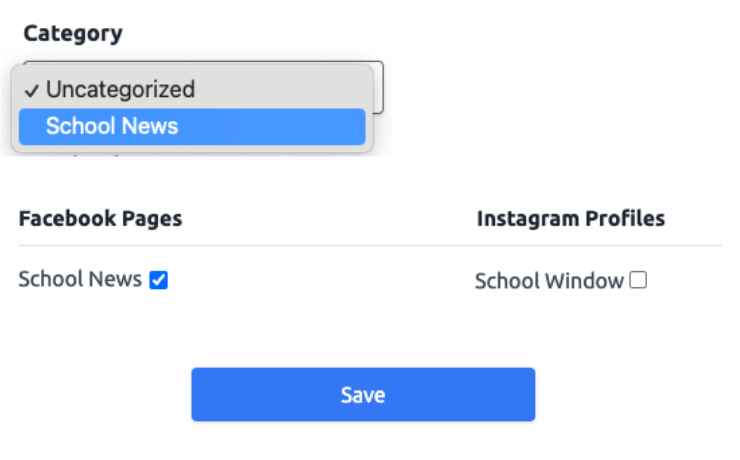
You’ll return to your School Window dashboard. Here, you’ll see your available Facebook Pages and Instagram accounts.
📂 First, select a category from the dropdown menu
✅ Select the Page(s) you want to feed into your app
💾 Then click “Save” at the bottom of the page
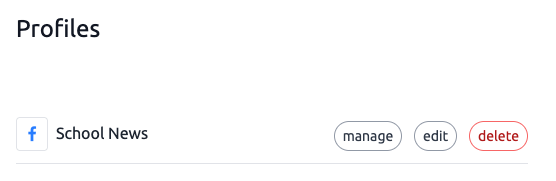
If your app is already live, your new feed(s) will appear in your School Window app within a few minutes – you're all set up. ✅
📩 If we’re still building your app, please email social@schoolwindow.app to let us know you’ve connected your Page.
Once we hear from you, we’ll submit your app to the stores for approval.
Thanks for getting your social feed connected — your stories are about to reach even more families.