
CONNECTING FACEBOOK
How to connect your Facebook Page to School Window
Please login to Facebook and follow the steps below to allow us to connect your Facebook Page to your app.
N.b. This integration gives School Window permission to see how the Page, content, ads and other metrics perform.
It does not give School Window permission to create or manage content, send or respond to messages, review comments, nor create or manage ads.
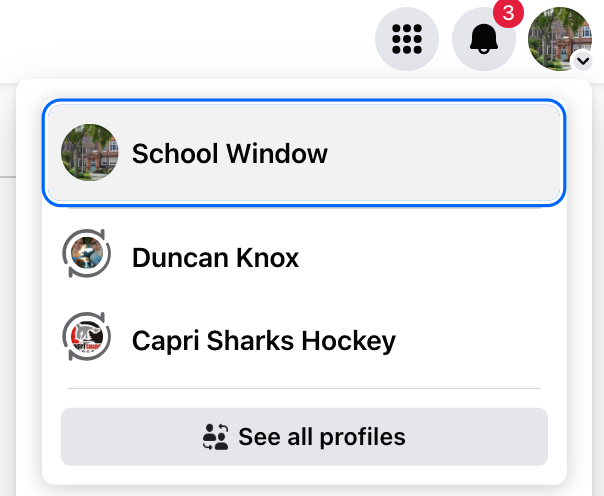
Click on the icon at the top right of any Facebook Page. In the dropdown that appears, select the Page that you want to connect to your app.
If you're trying to connect an Instagram account, this is the Facebook Page that your Instagram account is connected to.
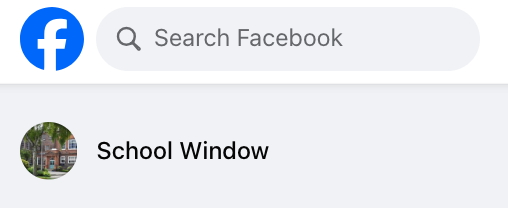
You should see your Page in the left hand menu, but if not, you can find it here: https://www.facebook.com/pages/
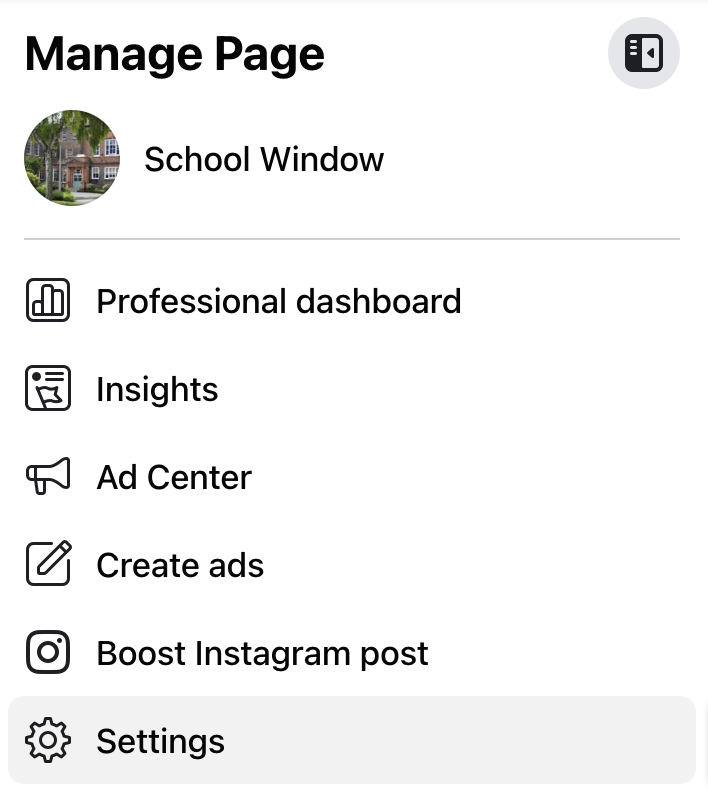
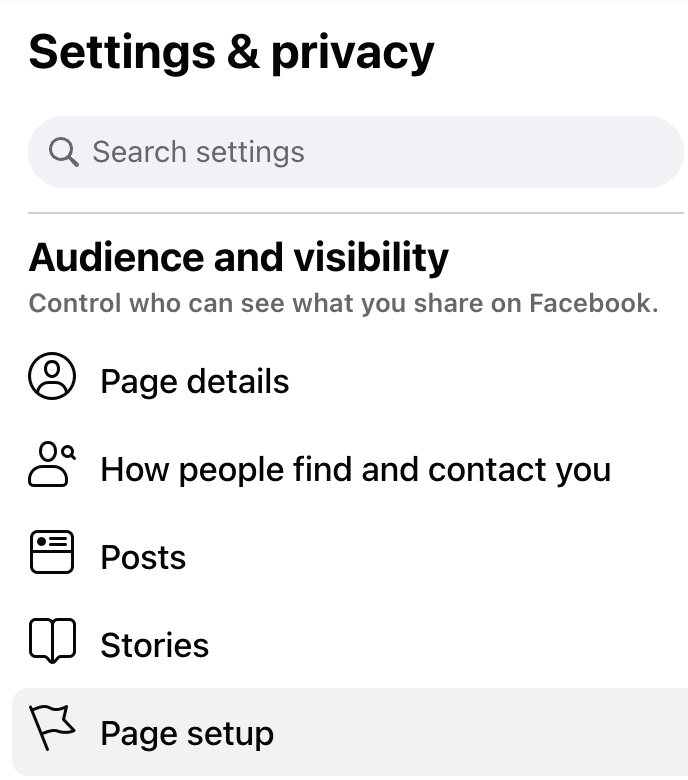
Click the 'Settings' button in the left-hand menu.
In the left hand menu, click 'Page setup'.
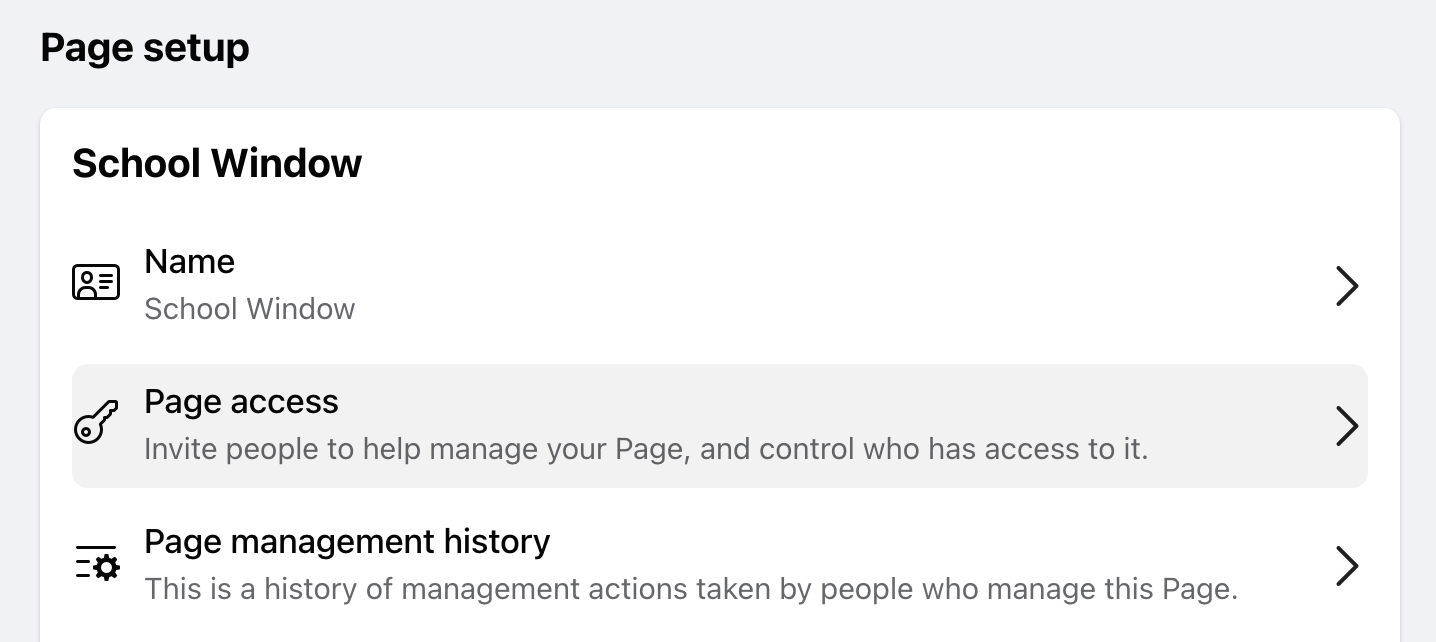
Click 'Page access' in the main menu.
Click 'Add New' in the 'People with task access' section.
Click 'Next' on the first pop-up message you see.

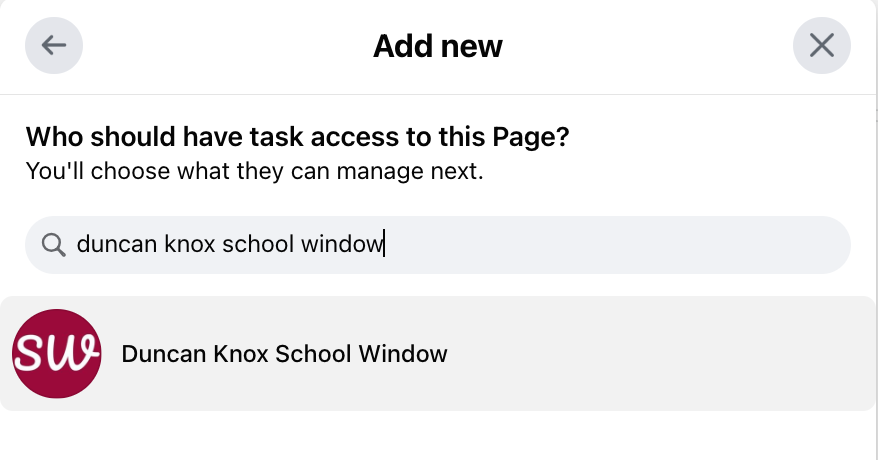
Search for and select 'Duncan Knox School Window'.
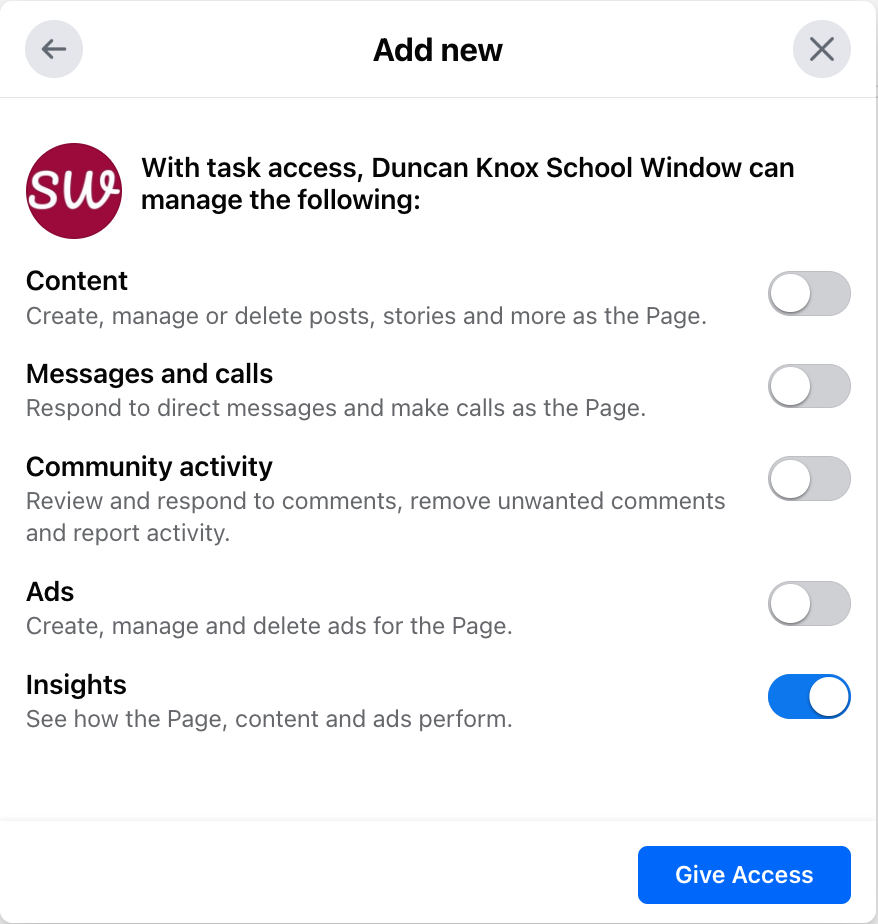
Toggle 'Insights' on and then click 'Give Access'.
Selecting only this level of access means that School Window will not be able to create or manage content, send or respond to messages, review comments, nor create or manage ads.
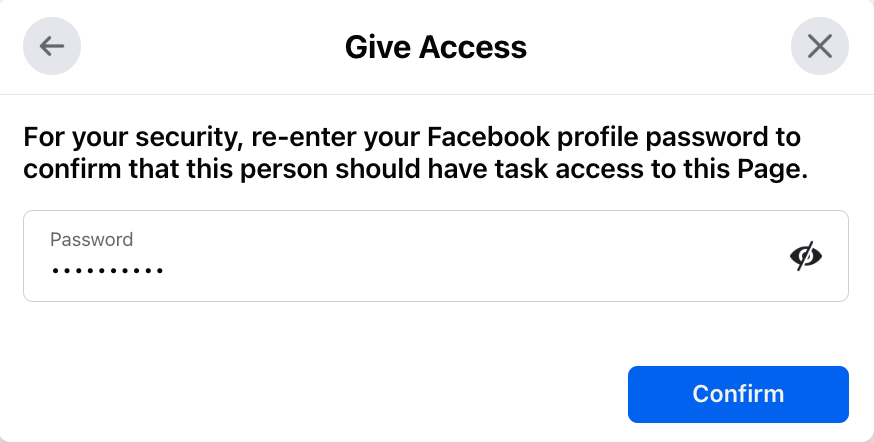
Enter your password to finish.
Please send us an email at social@schoolwindow.app to confirm you've completed setup.
We'll then connect your Facebook and/or Instagram feeds to your app.
Thank you!
If you'd like to feed an Instagram account, please follow the instructions on this page.
N.b. If your school posts the same content on both Facebook and Instagram, there's no need to add both accounts.
If the content differs, your app has a de-duplicator which will remove similar posts. However, if the text on posts is substantially different on each platform, the de-duplicator will not recognise the posts as the same.