CONNECTING INSTAGRAM
How to connect your Instagram account to School Window
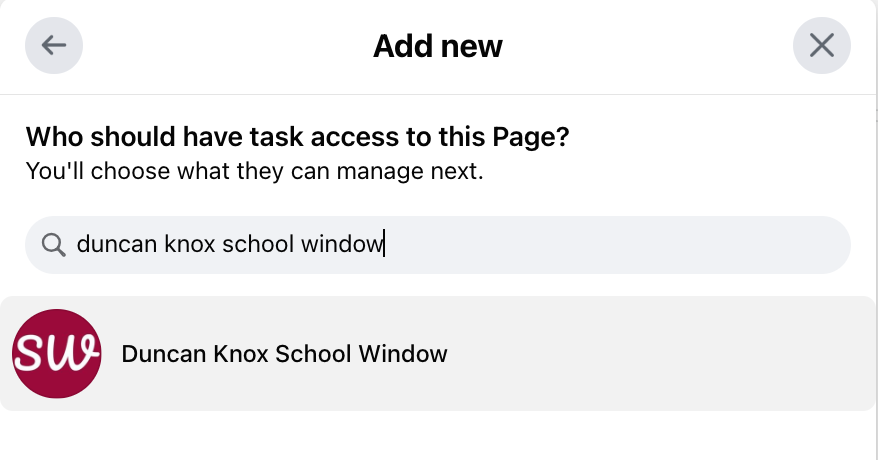
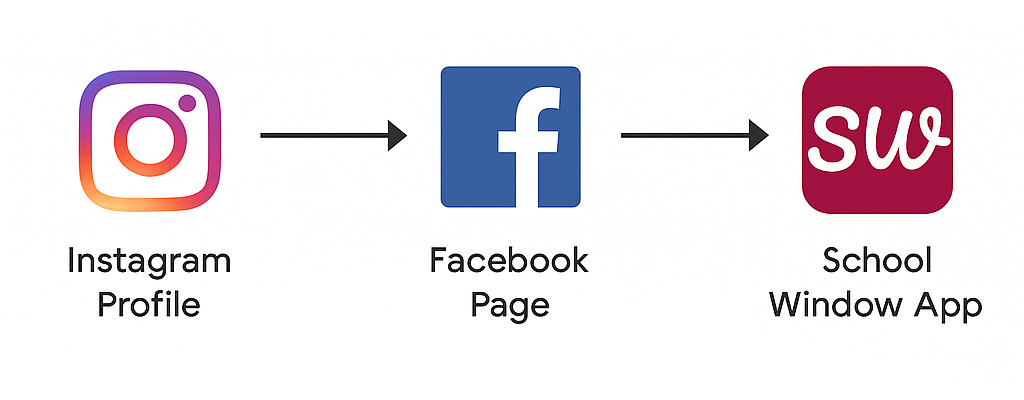
We connect to your Instagram account via Facebook, so if it isn't already, we must first connect your Instagram account to a Facebook Page.
If your Instagram account is already connected to your Facebook Page, please follow the instructions here.
Login to Instagram on your desktop computer, and click ha in the bottom-left corner.
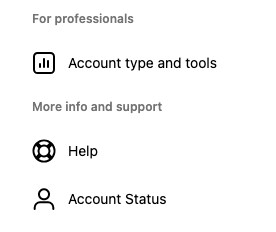
In the menu that appears, tap co Settings, then scroll to the bottom of the Settings menu and click Account type and tools.
(If you don't see Account type and tools, and instead see professional accou , this means you already have a professional account. Go to step 2.)
Now click Switch to professional account. Click through the following pop-up windows. (It's not important what information you enter.)
If you already have a Facebook Page to connect, go to step 4.
If you don't, you'll need to create one now. This Facebook Page is a dummy page that will never be seen.
Login to Facebook on your desktop computer. Click pa Pages and then + Create New Page on the left-hand side.

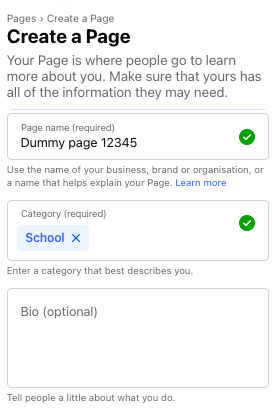
No-one will ever see this Page so you can enter any information to set it up. Making it slightly identifiable to your school would be advantageous, e.g. "BGS" or "BGS dummy".
Click Crggeatepage then click Switch into [your page].
On your Page, click Manage and then Linked accounts in the left-hand menu.

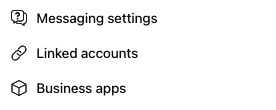
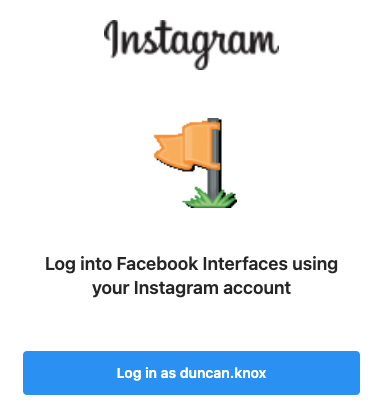
Click View Instagram and then Connectaccorrr rt.
In the pop-up, login using the Instagram account you wish to connect.
(If your Facebook Page is already connected to an Instagram account, but not the one you want to connect to your app, go back to step 2.)
Great work so far!
Please follow the remaining instructions here.