USER GUIDE
How to set up and manage your app
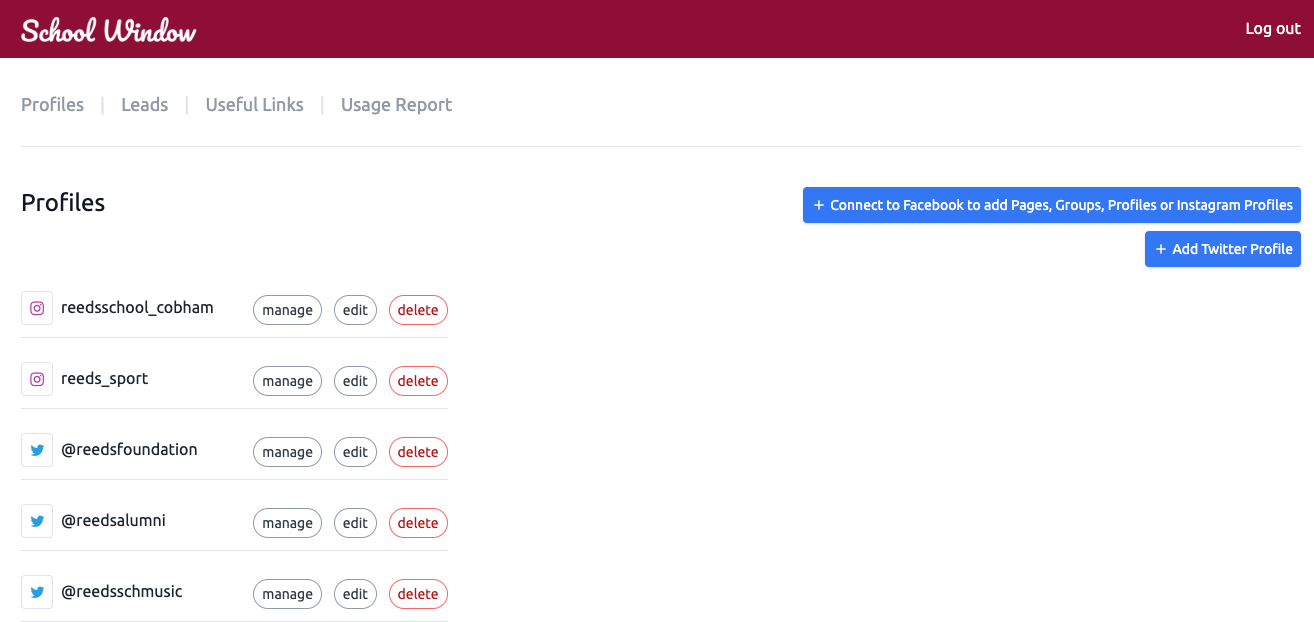
In the Profiles tab, you can add new Twitter/X accounts using the smaller blue button in the top right.
Make sure to select the category that you want each profile to feed in your app, e.g. 'School news' or 'Sport'.
To add Facebook or Instagram accounts, please follow these instructions:
Add Facebook Page
Add Instagram profile
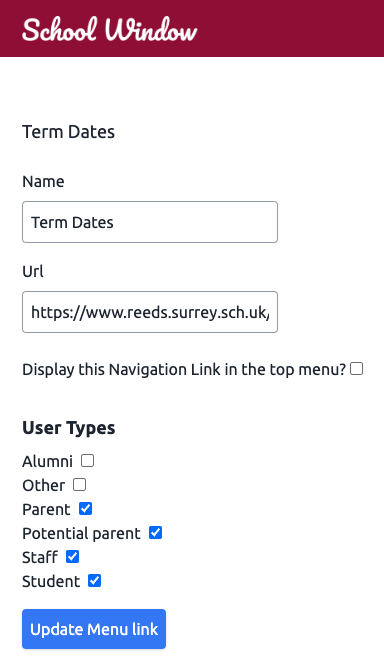
In the Useful Links tab, you can add the webpages that you want to include in your app.
You can also select the user types that will see each link.
In most instances, we recommend leaving the 'Display this Navigation Link in the top menu?' box unticked.
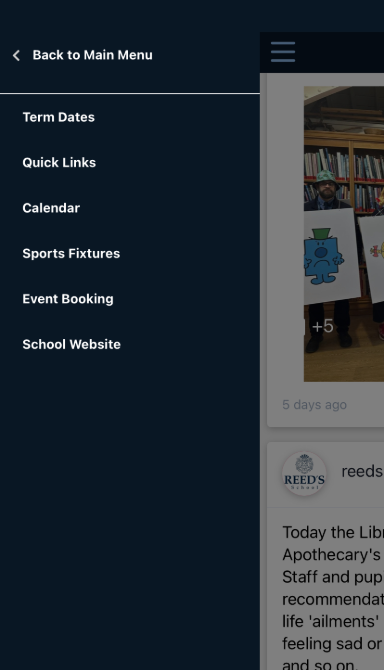
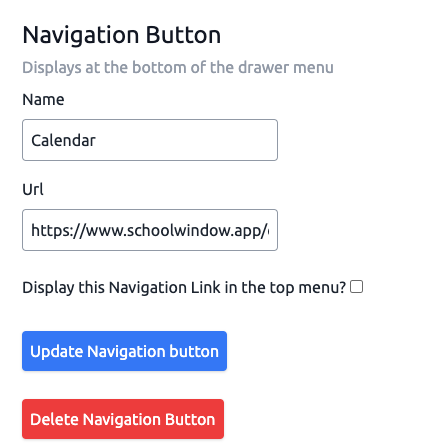
At the bottom of the Useful Links tab, you can add a Navigation Button to the main menu in your app.
This is the link that your parents use the most, so we often see it linked to the parent portal or calendar.
Push notifications are currently connected to a social media post. In the Profiles tab, you can find a post by clicking Manage on the relevant social media account.
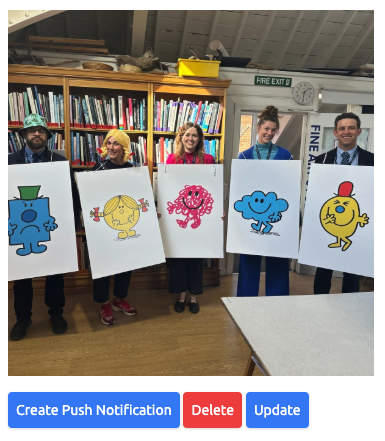
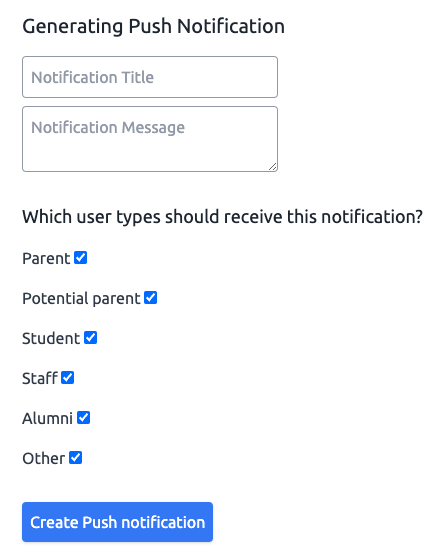
Find the post that you want to connect a push notification to, and click Create Push Notification.
You can then enter the details of your message plus the user types that will receive it -- and it will send in seconds!
-- or you can watch a video on how to send them here.
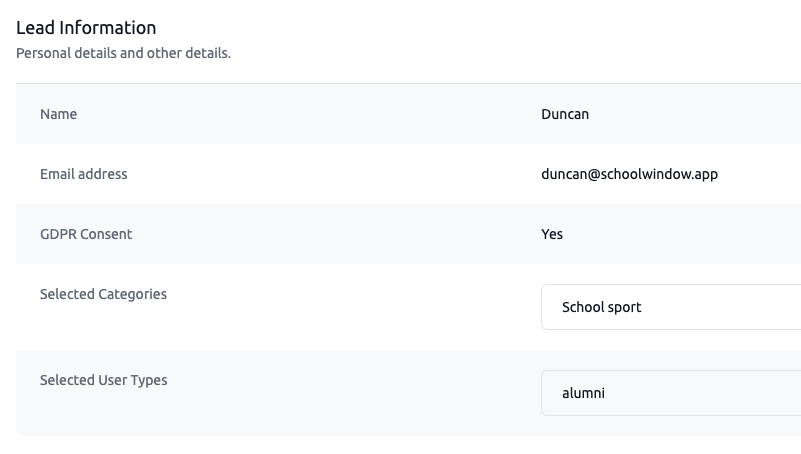
In the Leads tab, you can view and export all of your users.
The data visible is dependent on what you choose to collect on your app's settings page, i.e. Name, Email, Consent.
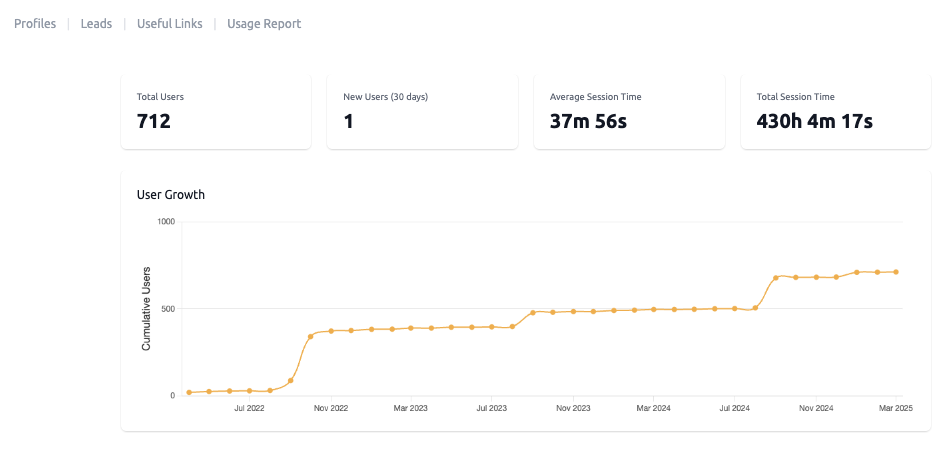
In the Usage Report tab, you can see the growth of your user numbers and how engaged they are with your app.